|
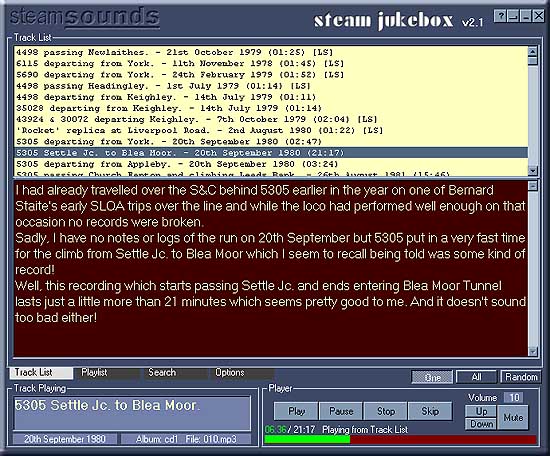
Window
controls
Starting from the top, if you click and drag in this area you can move
the window around your desktop just like using the title bar on a normal
window.
Over on the right are the usual controls for
closing the window (X), minimising the window to the task bar (-) and
for getting help (?). You may have found that one already! The button
between the Minimise & Help buttons will be unfamiliar. This one
will allow you to have a small version of the Player on your desktop
without filling the screen! See the Mini-Player
page for details.
Back to top
The
track list
Moving down we next come to the list of tracks.
When you start the programme for the first time this will be empty.
You need to visit the Options tab to load an album
of recordings.
This area may also be empty if you start the programme and don't have
the album that you last used available, if it was on a CD or DVD and
you don't have it in the drive for example. Again, you will have to
go to the Options tab and load a new album.
If you click on a recording, notes about it will appear (providing you
have the appropriate album available) but it won't play unless you click
the Play button below or you can double click to start playing.
You can click on other recordings while playing another. As long as
you don't double click the original recording will continue playing.
You can also right click on a recording listed here to get the option
to add it to a playlist. If you want to select more than one recording
hold the Control key down and click the left mouse button for each one.
Or you can hold the Shift key down to select a range. When you have
all the the ones you want selected right click to add them to the playlist.
If you have multiple selections in the track list right clicking will
give you the option to clear all the selections - only the last track
you clicked on will remain selected.
Back to top
Notes
Below the track list you will find notes displayed about the recording
that is currently selected. If the disk that holds the recordings is
not available (not in the drive) you will see a message telling you
that the notes are not available.
Back to top
Changing
sizes
You can change the relative sizes of the track list and notes by clicking
and dragging the divider up or down.
Back to top
Tabs
Below the notes, to the left, are the tabs that you will use to get
to other areas of the programme. As well as the Track List there are
the Playlist, Search and Options.
If you are playing a recording, changing to another tab won't stop it
playing.
Back to top
Mode
buttons
Across at the other side are the three mode buttons. You can use these
when playing recordings from the Track List.
With the One button pressed, when you play a recording from the track
list just that recording will play then the player will stop when completed.
With the All button pressed, when the selected recording has finished
playing the next one will start and each recording will play until the
bottom of the list is reached.
If you press the Random button, after the selected recording has been
played another one, chosen at random, will play.
These buttons have no effect if you are playing a playlist.
Back to top
Player
controls
Below the mode buttons are the player controls.
Apart from the usual controls you can skip the currently playing track,
useful if you have the All or Random mode buttons pressed or if you
are playing a playlist.
There are also volume controls and a mute button.
Below the controls is a progress bar which shows how much of a recording
has been played along with a caption showing the time played and the
total playing time of a recording. 00:34/02:55
would indicate that you are 34 seconds into a 2 minute 55 second recording.
The progress bar has another function; if you click anywhere on it you
can skip backward or forward through a recording.
Back to top
Captions
Over to the left of the player controls you will find some information
displayed about the track being played; the caption from the track list
and the date of the recording.
If you have moved away in the track list from the recording being played
and want to get back to it in the track list, just click on the caption.
There are also details of the album and filename where the recording
can be found if you need to find it, perhaps to copy it onto a portable
mp3 player. If you hold the mouse pointer over the album and filename
for a few seconds a tool-tip will appear giving the full path to the
file.
Back to top
|