|
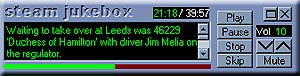
If you click and drag in the top part of the
Mini-Player you can move the window around your desktop just like using
the title bar on a normal window.
Windows
Controls
Which allow you to close the player or return to the full player.
Player
Controls
These controls mirror the controls on the full player and allow you
to Play, Stop, Pause and Skip a recording. Skipping only works if you
are playing all tracks, random tracks or playing a playlist. If you
are playing just one track it will work just like the stop button.
Above is a caption showing the time played and the total playing time
of a recording. 00:34/02:55 would indicate
that you are 34 seconds into a 2 minute 55 second recording.
Back to top
Volume
Controls
Increase, decrease or mute the volume.
Title
and Notes
This area will normally display the title of the recording playing.
If you click on it you will see the notes for that recording. Click
again to get back to the title.
Progress
Bar
Indicates how much of a recordings has been played. Like the full player,
this has another function; if you click anywhere on it you can skip
backward or forward through a recording.
Back to top
|


 button to switch to the Mini-Player