 |
Calibrate
Your Monitor |
|
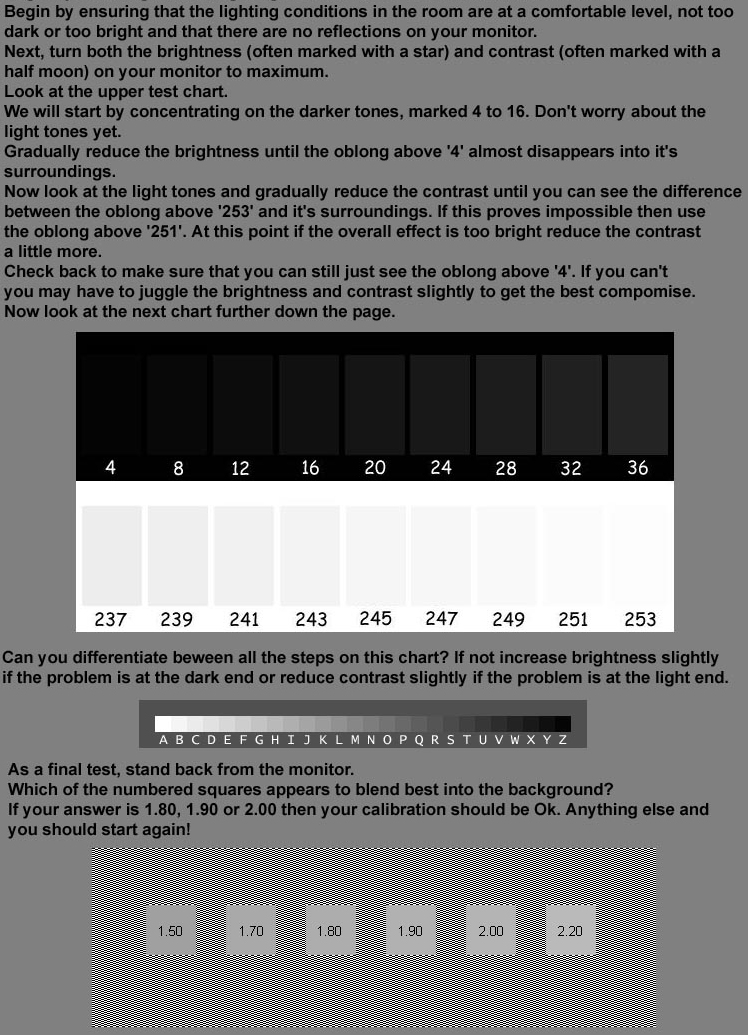
It is quite important when dealing with photographs, particularly if you edit them to ensure that your monitor is properly calibrated. Without proper calibration you may not see the full tonal range that is present in the original. Worse still, if you edit your own photographs and change brightness and contrast, while you may be able to get a satisfactory image on your monitor, when someone else looks at it on another monitor it will not look the same and will probably look worse. The solution is to use a calibration chart. The one on the right is in three parts. The first two ensure that you are seeing as wide a range of tones as possible while the last checks that the gamma (which is just another way of saying contrast) isn't too high or too low. A few points that aren't mentioned in the instructions are, firstly, that you shouldn't try to adjust your monitor just after it has been switched on. It takes a while to warm up and I would suggest waiting for at least 30 minutes. The second important point is that you should really try to use some kind of image editing software to view the chart. If you view it in Internet Explorer you may find it impossible to get the full range of tones. Internet Explorer does not appear to deal well with jpeg files probably in an attempt to speed the loading of images at the cost of quality! Lastly the chart needs to be viewed at 100% (in size). You should download a copy of the chart on your PC so either right click on this link or on the picture on the right and from the menu that appears select 'save target as', not 'save picture as'. Save the file moncal.jpg on your PC then open it in whatever programme you use for editing or viewing images. But please don't use Internet Explorer! Problems? Feedback. |
 |
| Close this Window | |